
Welcome to the Michigan WIN Resource Center
This page includes webinars, instructional documents, and other helpful resources to prepare you for administering the WIN Work Readiness Assessments.
WIN Work Readiness Assessments
2026-2027 Important Dates coming soon
Intro to WIN Webinar:
WIN Wednesday: Standard Tools and Accommodations:
Paper Testing Materials Training:
Technology Coordinator Training:
Test Administration Training – Online Testing:
Test Administration Training – Online Testing (repeat session):
Test Administration Training – Paper Testing:
How to Batch Enroll Test Administrators:
Student Login Tutorial:
The WIN Work Readiness Assessments are a workforce education and development tool, comprised of three proctored assessments, Work Ready Math, Work Ready Reading, and Work Ready Data, leading to a portable credential. It brings employers, learners, job seekers, and education/workforce partners together in building a skilled workforce, while keeping and attracting businesses with higher-wage jobs and economic growth.
Click through the tabs below to learn more about the WIN Work Readiness Assessments administrative functions.
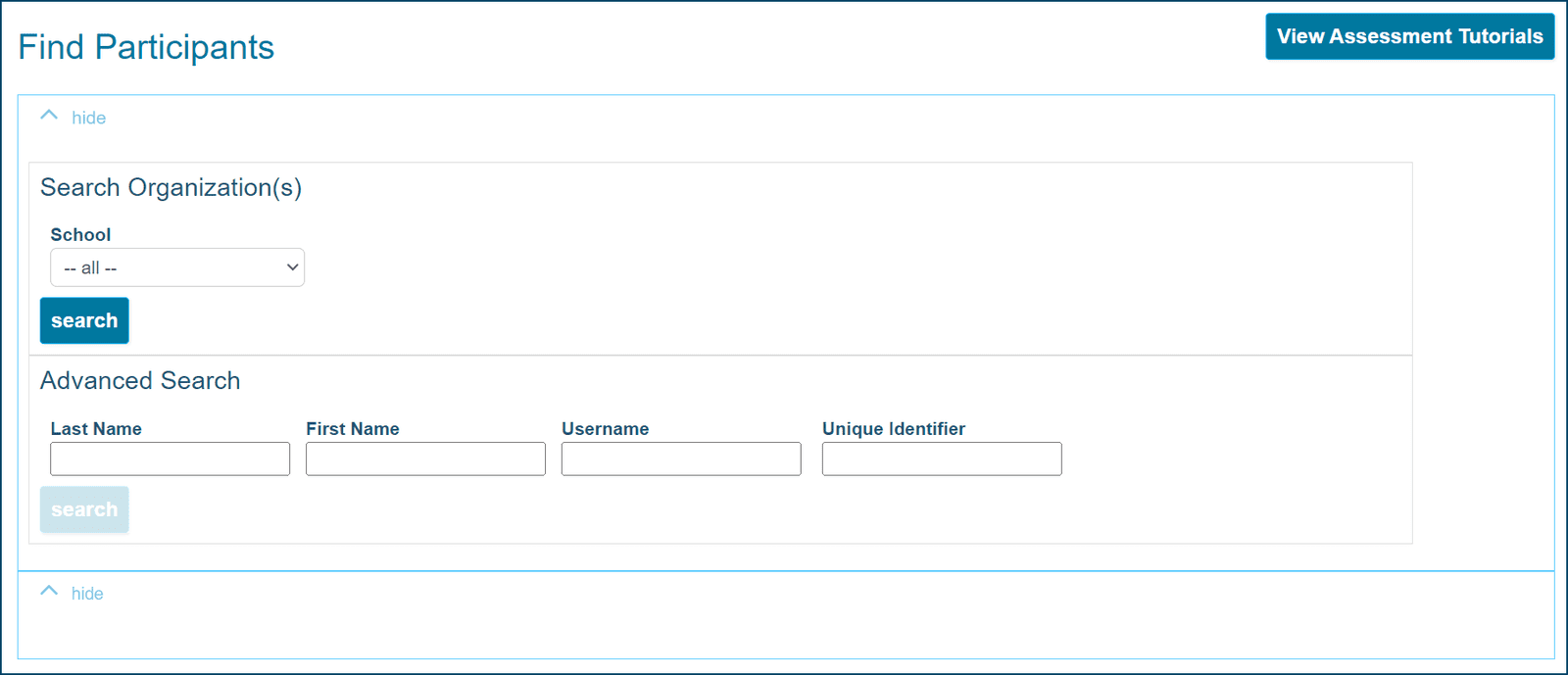
A specific class can be found by typing the first few letters of the title in the search field. By clicking the name of a class, a list of all students in the class will be displayed. Multiple classes of students can be added to the Assessment Assignment grid. Return to the full list of classes by clicking the name of the site location or search by class name.
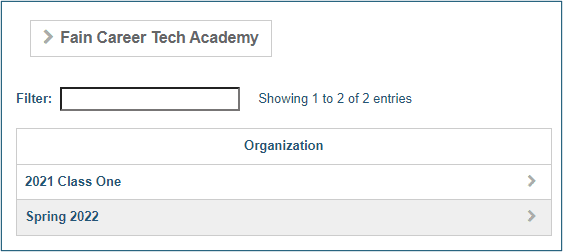
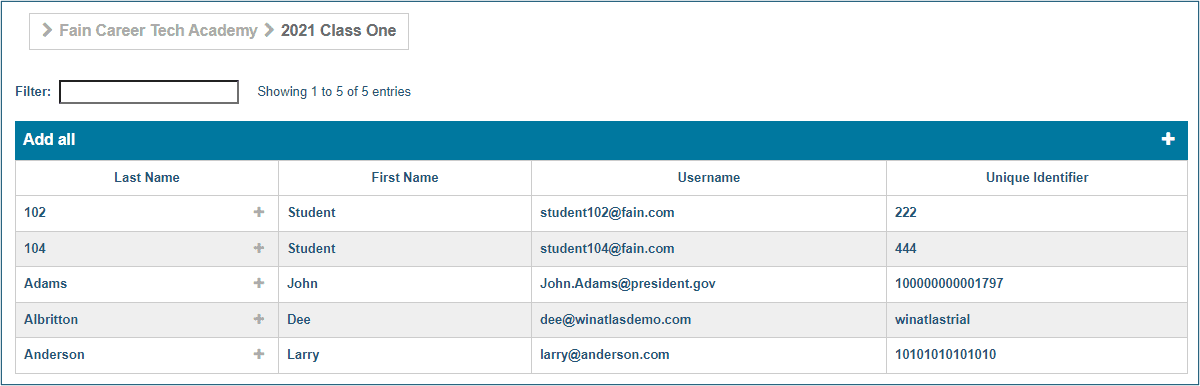
To place all students from the class into the Assessment Assignment Grid, click Add all or the white plus sign.
To add individual students, click the plus sign next to the student’s name.
To remove all students from the grid at once, click the X at the top of the Name column.
To remove individual students from the grid, click the X next to the student's name. Note: All students should be removed from the Assignment grid at the end of the testing session
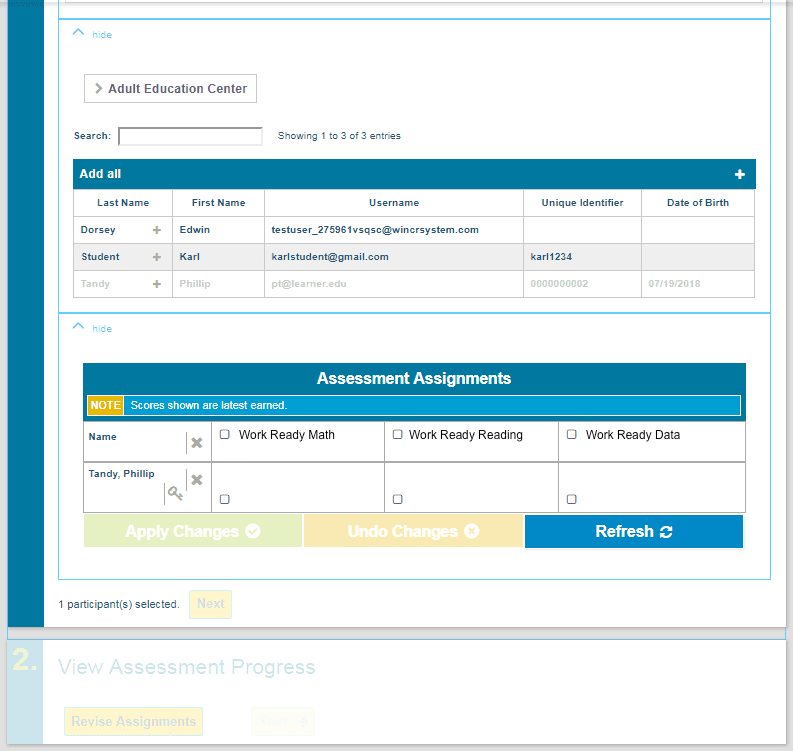
Scores for any assessments already taken will be displayed next to the student’s name. A check mark in the cell for an assessment means that assessment has already been assigned to the student and there is no need to reassign.
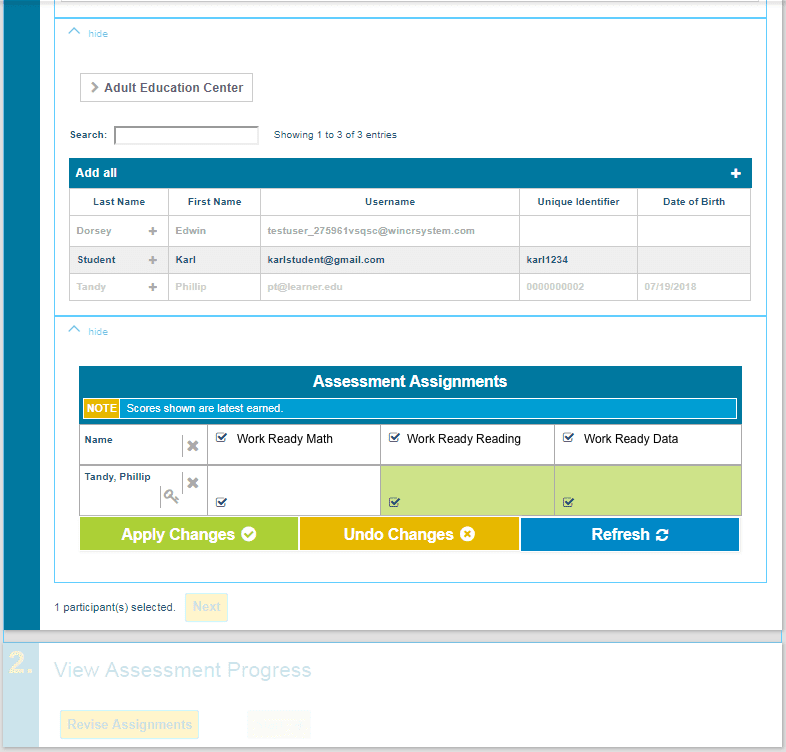
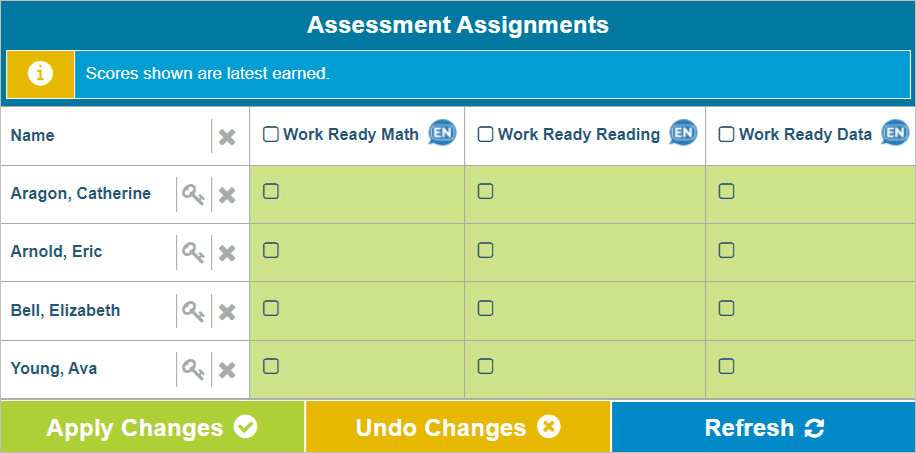
Assign specific assessments by checking the box in the assessment column of the grid.
To assign an assessment to an individual student, click the checkbox within the grid for the student. Students may have multiple assessments assigned to them at once.
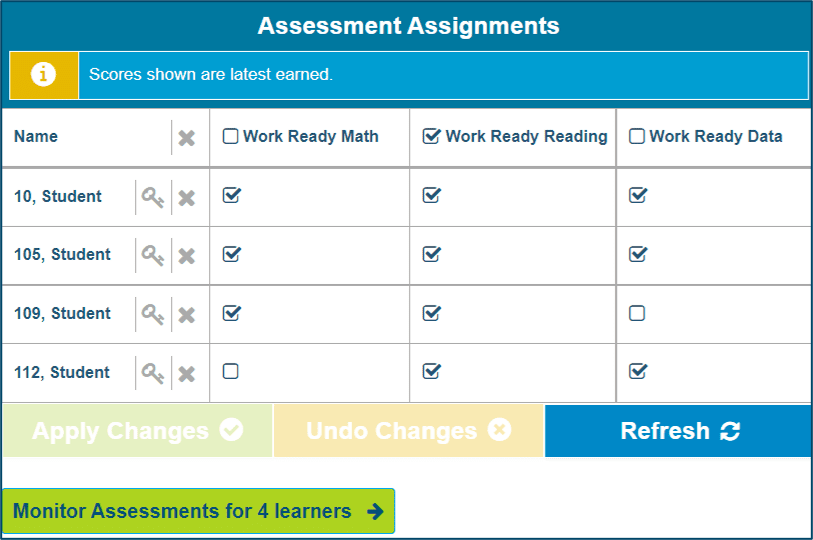
To assign the same assessment to all students, click the checkbox for that assessment in the top row of the grid. The column of students will be highlighted and will have checkmarks displayed.
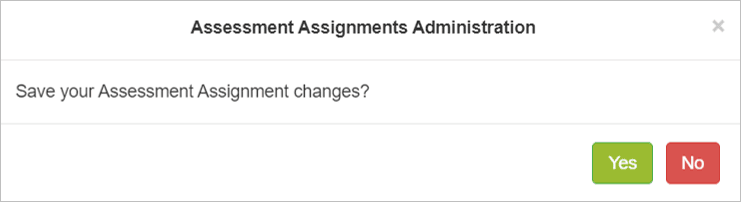
To save actions, click Apply Changes. Confirm by clicking Yes in the pop-up window.
To undo any actions prior to clicking Apply Changes, such as clearing the grid of checkmarks, click Undo Changes.
Refresh will update the grid with assessment scores.
When you are ready to proceed, click the Monitor Assessments button.
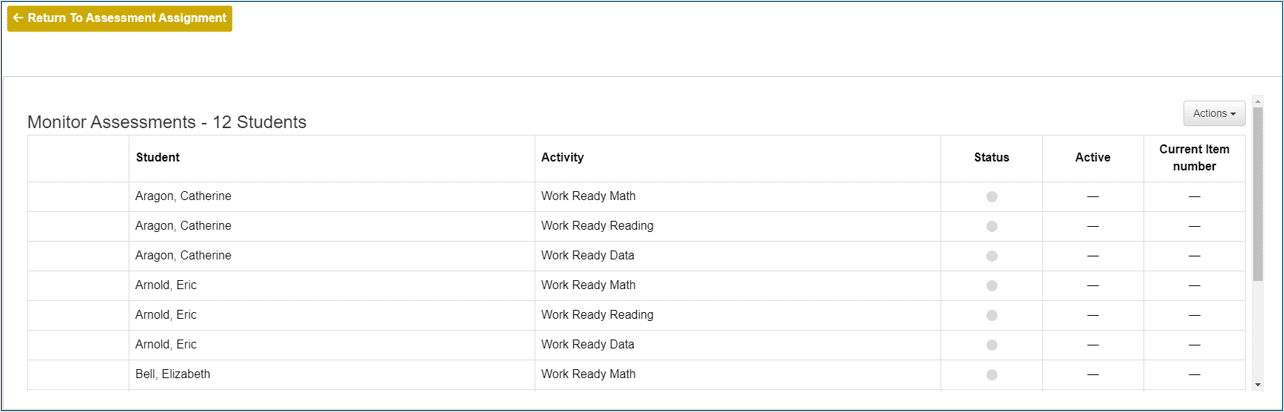
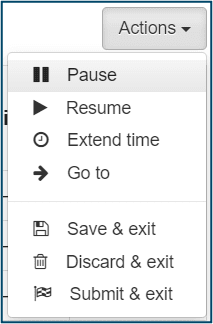
This will take you to the Progress Monitoring screen. From here you will be able to see which students are currently active in the system and where they are in the assessment. Click the Actions dropdown in the top right corner of the grid to pause and resume a student's assessment or extend a student's assessment time.
1. When testing is complete, remove all assigned assessments from the Assessment Assignment Grid. Deselect all assessments so all boxes are clear. Then select Apply Changes and click Yes in the pop-up window.
2. Remove all students from the Assessment Assignment Grid. Select the X at the top of the Name column to remove all students at once.
3. Scores are available immediately after testing. Click Refresh in the Assessment Assignment Grid to display scores. Scores can also be viewed by selecting Reports at the top of the dashboard.
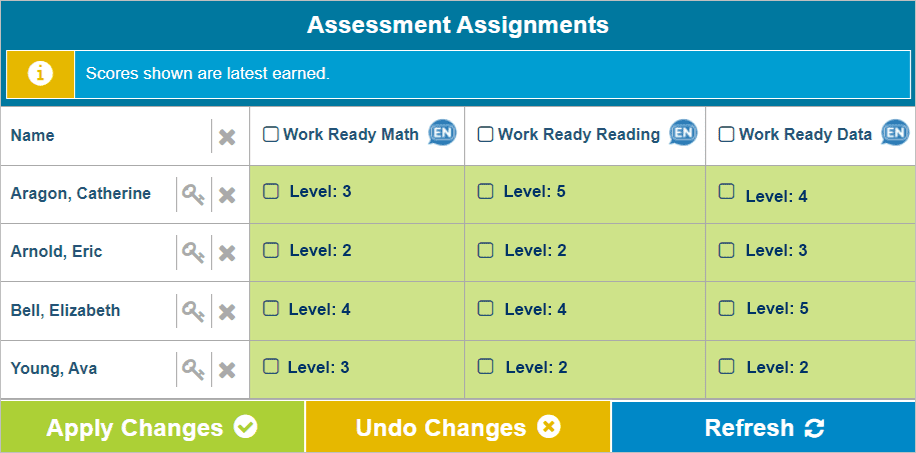
4. If a student has taken the assessment before, their previous score will populate in the Assessment Assignment Grid when they are placed in the grid. The previous score will be replaced with a new score if it is higher upon test completion.
Since 1996, WIN’s integrated approach to career readiness has given more than 10 million learners worldwide the tools, confidence, and skills necessary to excel. WIN’s e-learning solutions include academic and employability skills courseware, assessments, and credentials as an important foundation for creating a more effective and efficient system to prepare learners and job seekers for career and life success.